Extract bandwidth information from lighttpd log files
I was recently looking for a simple way to get some bandwidth statistics for websites that I host. Interested in historical data my only option was to look back over my webserver log files.
My webserver of choice on linux systems is currently lighttpd. Here’s a quick shell script to get the bandwidth statistics out of the default lighttpd log files:
#!/bin/bash
cat access.log | awk '{
month=substr($4,5,3)
year= substr($4,9,4)
timstamp=year" "month
bytes[timstamp] += $10
} END {
for (date in bytes)
printf("%s %20d MB\n", date, bytes[date]/(1024*1024))
}' | sort -k1n -k2M
That will give you a table containing the stats based on the bytes sent for the body of the pages:
2011 Jan                  662 MB
2011 Feb                12090 MB
2011 Mar                13645 MB
2011 Apr                12274 MB
2011 May                12279 MB
2011 Jun                 9551 MB
Automate backups of Netgear WNDAP330 & WNDPA350
As part of my ongoing battle to backup all our network devices, I’ve cobbled together a batch script to backup Netgear’s ProSafe range of access points. Save the following as Backup.bat:
@echo off

REM ================================================================
REM CONFIGURATION INFO
REM ================================================================
set CFGFILE=BackupList.txt
set DESTDIR=C:\Backups\
set NET_USERNAME=admin
set NET_PASSWORD=netgear

REM ================================================================
REM STOP CHANGING HERE OR YOU'LL BREAK SOMETHING
REM ================================================================
SET TIMESTAMP=%date:~-4,4%.%date:~-7,2%.%date:~-10,2%
for /F "tokens=1,2 delims=," %%A in (%CFGFILE%) do (
	IF NOT EXIST "%DESTDIR%%TIMESTAMP%" mkdir "%DESTDIR%%TIMESTAMP%" > NUL
	echo %%B

	curl -s -c "%%A.cookie.txt" "http://%%B/login.php?username=%NET_USERNAME%&password=%NET_PASSWORD%"
	curl -s -b "%%A.cookie.txt" "http://%%B/downloadFile.php?file=config" -o "%DESTDIR%%TIMESTAMP%\%%A.cfg"

	IF EXIST %%A.cookie.txt del %%A.cookie.txt
)
In the same directory create a TXT file named BackupList.txt. Add access points to the file that should be backed up in Name,ip address format. A sample BackupList.txt file might look like:
LON-CORE-WAP01,192.168.1.1
NY-CORE-WAP01,192.168.2.1
You’ll also need to download the windows version of cURLa list of mirrors can be found here. Place it in the same directory as the other two files.
Then run Backup.bat to backup all your Netgear ProSafe WNDAP access points.
Dell PowerConnect vulnerability
Whilst trying to automate backups of our network device configuration I stumbled across a major disclosure vulnerability with Dell PowerConnect switches. Under the default configuration the running config if the switch can be downloaded without authenticating. Simply open a web browser and navigate to:
http://switch management IP/filesystem/running-config
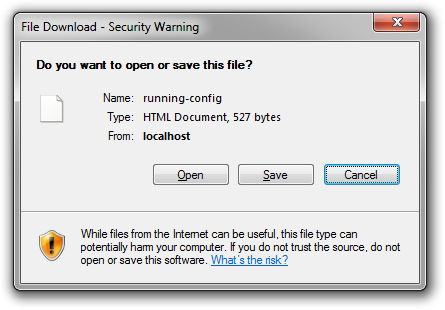
I’ve tried writing back to the switches by posting data to /http_file_download.html with no success – Cookies are required for that. Still, with a copy of the encrypted root password it shouldn’t take long to get access with a good set of rainbow tables (See here for such a tool).
This is likely to effect most current Dell PowerConnect switches though I’ve only tested it on M6220 and 6248 switches running the latest firmware (3.1.3.9 blades / 3.2.1.3 on 6200).
Continue reading…